Map of contents
The plugin’s settings are distributed across 4 groups, the last of which is split into 2 sub-pages.
- Data paths - define which files to use for the chart
- Calendars - manage your calendars
- Groups - manage your groups
- Advanced:
- Display and controls - manage user experience
- Events - default event values
- Event overlay - graphics when hovering events
- Zooming and Panning
- Gantt chart
- Plugin - plugin-wide settings
- Frontmatter Properties - manage frontmatter properties
- Display and controls - manage user experience
Data paths
This section tells the plugin where to search for event and calendar notes.
- Event path: Folder to search for Gantt event definitions. Can be any folder including vault root.
- Default:
root
- Default:
- Search recursively: Toggle to search
Event pathrecursively.- Default:
false
- Default:
- Calendar path: Folder to search for calendar definitions. Can be any folder including vault root.
- Default:
root
- Default:
- Search recursively: Toggle to search
Calendar pathrecursively.- Default:
false
- Default:
Calendars
This section manages your calendars.
Click the '+' button to create a new calendar.
Calendar IDs must be unique and case-sensitive!
- Visibility: Toggles whether related events are shown on the chart.
- Color: Color applied to related events and axes.
- Priority: Sort the calendars by dragging the
⋮button. Order of appearance in the list determines sorting in the chart. - Delete: Deleting a calendar will not remove its events from any charts; it only removes its color, visibility, and priority settings.
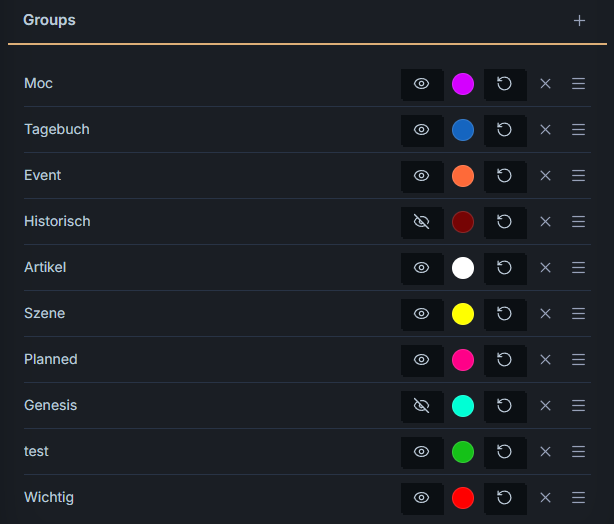
Groups
Follows the exact same UI structure and management logic as Calendars.
Advanced
The following settings are hidden in sub-pages.
Display and controls
Events
- Symbol: Choose a shape for timestamp events. See event-shape.
- Default:
point
- Default:
- Calendar: Default event calendar. See event-calendar.
- Default:
gregorian
- Default:
- Group: Default event group. See event-group.
- Default:
general
- Default:
- Color: Default event color. See event-color.
- Default:
#1565C0
- Default:
- Icon color: Default icon color. See event-icon.
- Default:
#FF8800
- Default:
- Vertical line width: Width of vertical line events. Increase to make clicking the event easier.
- Default:
3
- Default:
Filename as start date(Deprecated): Deactivated for now as it tries to parse your entire vault’s filenames if not configured properly. Will be added in the future.
Event overlay
This section handles what happens when hovering events with your mouse.
- Highlight event: If true, will show a box around the hovered event matching the event’s shape.
- Toggle. Default:
true
- Toggle. Default:
- Highlight related events: If true, will highlight predecessors and successors of hovered event with native highlight color.
- Toggle. Default:
true
- Toggle. Default:
- Connect related events: If true, will draw arrows between hovered event and its predecessors and successors.
- Toggle. Default:
false
- Toggle. Default:
- Show vertical line: If true, will show a vertical line over the hovered event to compare to others in the same time range.
- Toggle. Default:
false
- Toggle. Default:
- Color: Color for both highlights: surrounding box and vertical line.
- Default:
red
- Default:
- Tooltip: If true, will add the event’s absolute day to its tooltip. Useful for testing and comparison.
- Toggle. Default:
false
- Toggle. Default:
Zooming and Panning
This section handles how and when the plugin zooms and pans around the chart.
- Restrict minimum and maximum zoom: If true, the maximum zoom shows 4 adjacent days, minimum zoom fits your complete dataset.
- Toggle. Default:
true
- Toggle. Default:
- Zoom key & Pan key: Although you can pan by dragging the chart horizontally (mouse or finger) or zoom with 2-finger pinching (mobile only), these settings allow you to define 2 additional ways to do so using the mouse wheel. For each, choose a button to hold while scrolling to achieve zoom or pan.
- Zoom and pan buttons: In addition to the options in the aforementioned setting, you can zoom and pan in fixed steps using buttons in the toolbar. To see them, activate this setting.
- Toggle. Default:
true
- Toggle. Default:
Gantt chart
This section handles additional settings related to the chart itself.
- Moons: If true, each calendar’s moons will appear over the calendar axis.
- Toggle. Default:
true
- Toggle. Default:
- Show group visibility toggles: If true, adds 1 button per group to the toolbar for quick visibility toggles.
- Toggle. Default:
false
- Toggle. Default:
- Color-code calendar axis: If true, each calendar’s color will apply to its axis. This may strain the eyes if using a large number of calendars.
- Toggle. Default:
false
- Toggle. Default:
- Move toolbar down: If true, moves the toolbar below the chart. Use this if you barely use the toolbar.
- Toggle. Default:
false
- Toggle. Default:
- Rerender cooldown (seconds): Slows down the rerender listener after file modifications.
- Number between 0 and 30. Default:
5
- Number between 0 and 30. Default:
Plugin
This section lets you add additional utilities to Obsidian.
- Add ribbon icon: If true, adds a ribbon icon to the workspace. Clicking it opens a modal with a fully functioning chart live preview for testing. You can copy the generated code block or save it directly to the currently open Markdown file. This is useful for defining multiple charts in a single note.
- Default (desktop):
true - Default (mobile):
false
- Default (desktop):
- Add plugin commands: If true, adds commands to Obsidian. Reload app after changing this setting. See commands.
- Default:
true
- Default:
Frontmatter Properties
This section lets you rename the frontmatter properties used by the plugin. Note that you cannot change the property types (yet). Doing so enables you to use the same properties for multiple plugins.
Calendar Frontmatter Properties
- Calendar definition: Frontmatter key used to identify a calendar definition file.
- Default:
gantt-calendar-definition
- Default:
Event Frontmatter Properties
- Event marker: Primary boolean frontmatter key that marks a file as containing Gantt events.
- Default:
gantt-item
- Default:
- Marker may be optional: If enabled, the primary marker becomes optional. This saves one property per file but reduces explicit control.
- Default:
true(meaning it is optional)
- Default:
- Event calendar: Frontmatter key that defines which calendar an event belongs to.
- Default:
gantt-calendar
- Default:
- Event name: Frontmatter key for the event name.
- Default:
gantt-name
- Default:
- Event start date: Frontmatter key for the event start date (mandatory).
- Default:
gantt-start
- Default:
- Event end date: Frontmatter key for the event end date (optional).
- Default:
gantt-end
- Default:
- Event color: Frontmatter key for event color (hex or name).
- Default:
gantt-color
- Default:
- Event group: Frontmatter key for the event’s group (used to sort and color events).
- Default:
gantt-group
- Default:
- Event symbol: Frontmatter key to override the event symbol per-event.
- Default:
gantt-symbol
- Default:
- Event icon: Frontmatter key for an icon name.
- Default:
gantt-displayIcon
- Default:
- Event icon color: Frontmatter key for the icon color.
- Default:
gantt-displayIconColor
- Default:
- Target header: Frontmatter key for a note-internal header; when set, clicking the event will navigate to that header instead of top-of-note.
- Default:
gantt-linkToHeader
- Default: