Event frontmatter properties
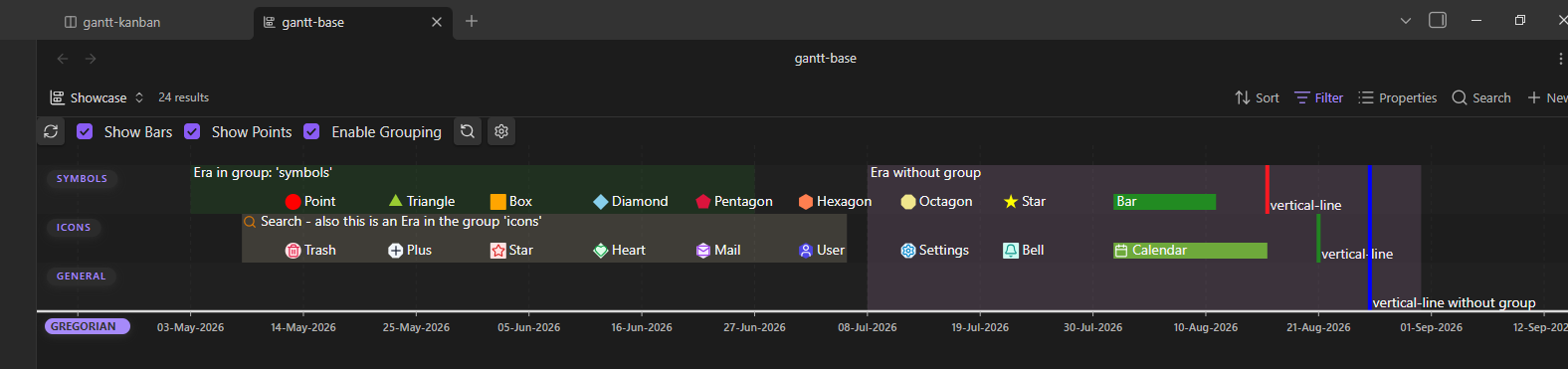
The screenshot show all possible event symbols and some randomly chosen icons.
Features & Structure
- Events: Each point or bar in the timeline corresponds to an event.
- Bars: Represent time spans.
- Points / Symbols: Represent specific points in time or milestones.
- Decentralized in Frontmatter: Events are defined directly within the YAML properties of your Markdown files.
- Structuring: Events can be organized, filtered, and sorted by groups and custom calendars.
- Flexible Visibility: Groups, calendars, time spans, and individual points can be shown or hidden independently.
- Custom Styling: Points in time can be customized with icons from Obsidian's cache and custom colors.
- Interactivity:
- Mouseover displays relevant metadata in a tooltip (Desktop).
- Clicking an event directly opens the source note—optionally jumping to a specific heading.
- Full navigation via drag & zoom (mouse wheel on Desktop, touch gestures on mobile devices).
Populating Your Gantt Chart / Timeline
To display one or more notes as events in your timeline, add the corresponding properties to the YAML frontmatter of
your Markdown file:
---
gantt-item: true           # Marks the note as an event
gantt-start: 2026-01-01    # Start date / point in time
gantt-end: 2026-01-05      # Optional: end date (fallback: gantt-start) - marks event as timespan if given
gantt-name: "My Project"   # Optional: name (fallback: filename)
gantt-group: "Development" # Optional: group (fallback: 'general')
---
Additional Frontmatter Options
The following table lists all available properties you can use in your notes:
| Property | Type / Values | Optional? | Default / Fallback | Description |
|---|---|---|---|---|
gantt-item | Boolean | No* | true | Marks the note as an event target for the plugin. |
gantt-start | String | No | None (Note will be ignored without a start value) | Start date or start value of the event. |
gantt-end | String | Yes | Value of gantt-start | End date of the event. If identical to start value, a point is displayed. |
gantt-name | String | Yes | File name without extension (file.basename) | Name of the event in the timeline and tooltip. |
gantt-type | String | Yes | Default calendar | Determines the assigned calendar type. |
gantt-group | String | Yes | 'general' | Group used for row layout and structuring. |
gantt-color | Color (e.g. #ff0000, red) | Yes | Group color → Calendar color → Default | Overrides the background color of the event individually. |
gantt-displayIcon | String (Lucide Icon) | Yes | None | Displays an icon on the event. |
gantt-displayIconColor | Color (e.g. #ff0000, red) | Yes | Default icon color | Sets the color of the icon. |
gantt-symbol | bar, point, icon, diamond | Yes | bar (time span) or point (point in time) | Sets the visual representation format of the event. |
gantt-linkToHeader | String | Yes | None (Jumps to top of file) | Links directly to a specific heading when clicked. |
*: Property gantt-item may be defined as optional in the settings.
All of these can be renamed to your liking.